
Native Photos, Files, and Camera
Start from the system Photos picker, pull a file from Files, or record a clip. No custom photo browser — you stay in the UI Apple already taught everyone.

iOS app
Find the frames worth keeping on your phone. Import a video, extract locally, browse Smart Collections, and save keepers to Photos — processed on your device.
Mobile Smart Frame Studio
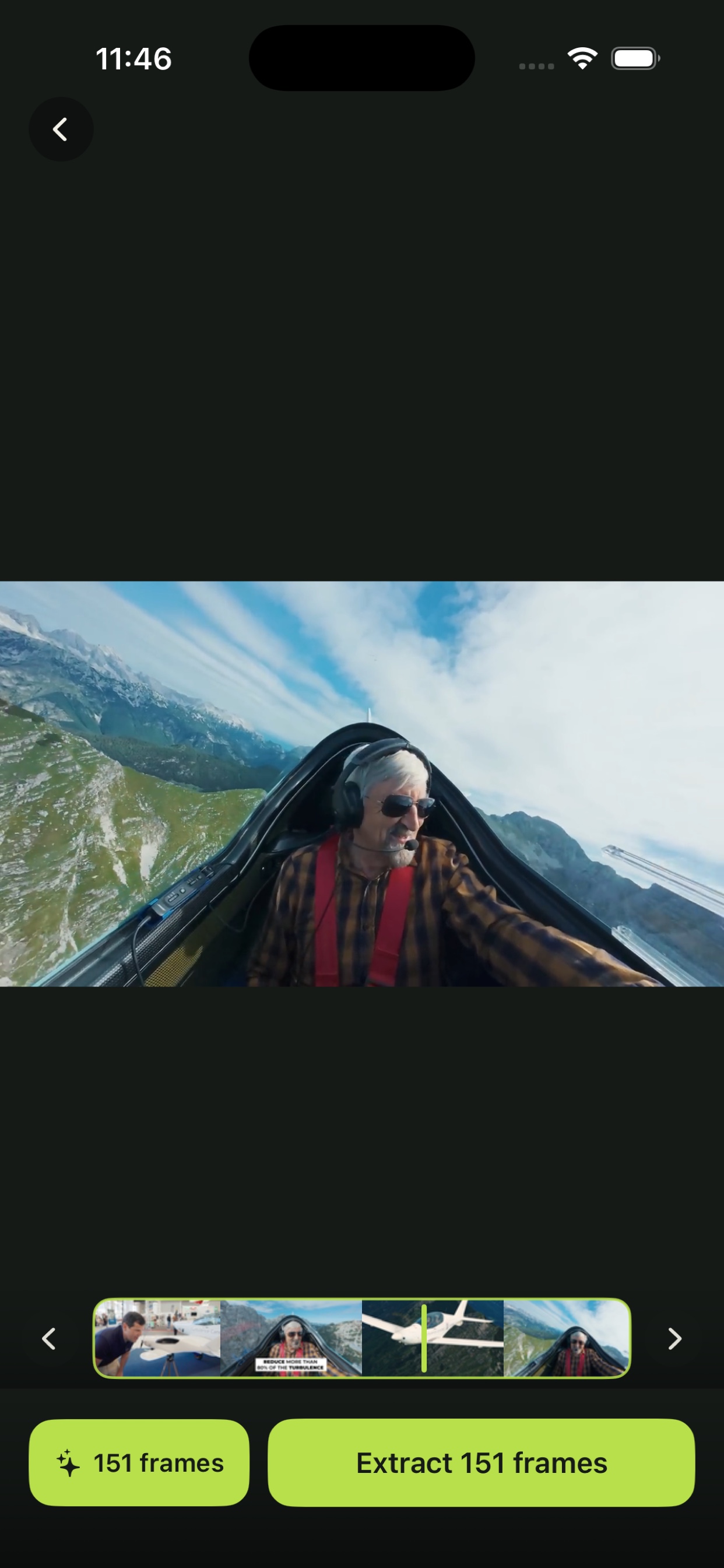
GetVideoFrames for iOS is a local video frame extractor and review studio for iPhone and iPad. Import from Photos, Files, or Camera, extract review candidates on device, pick keepers with Smart Collections, then export full-quality stills — without uploading your source video for extraction.
How it works
Open the native Photos picker, Files, or Camera. Pick any clip you already have — Recents, albums, and search stay in the system UI you already know.
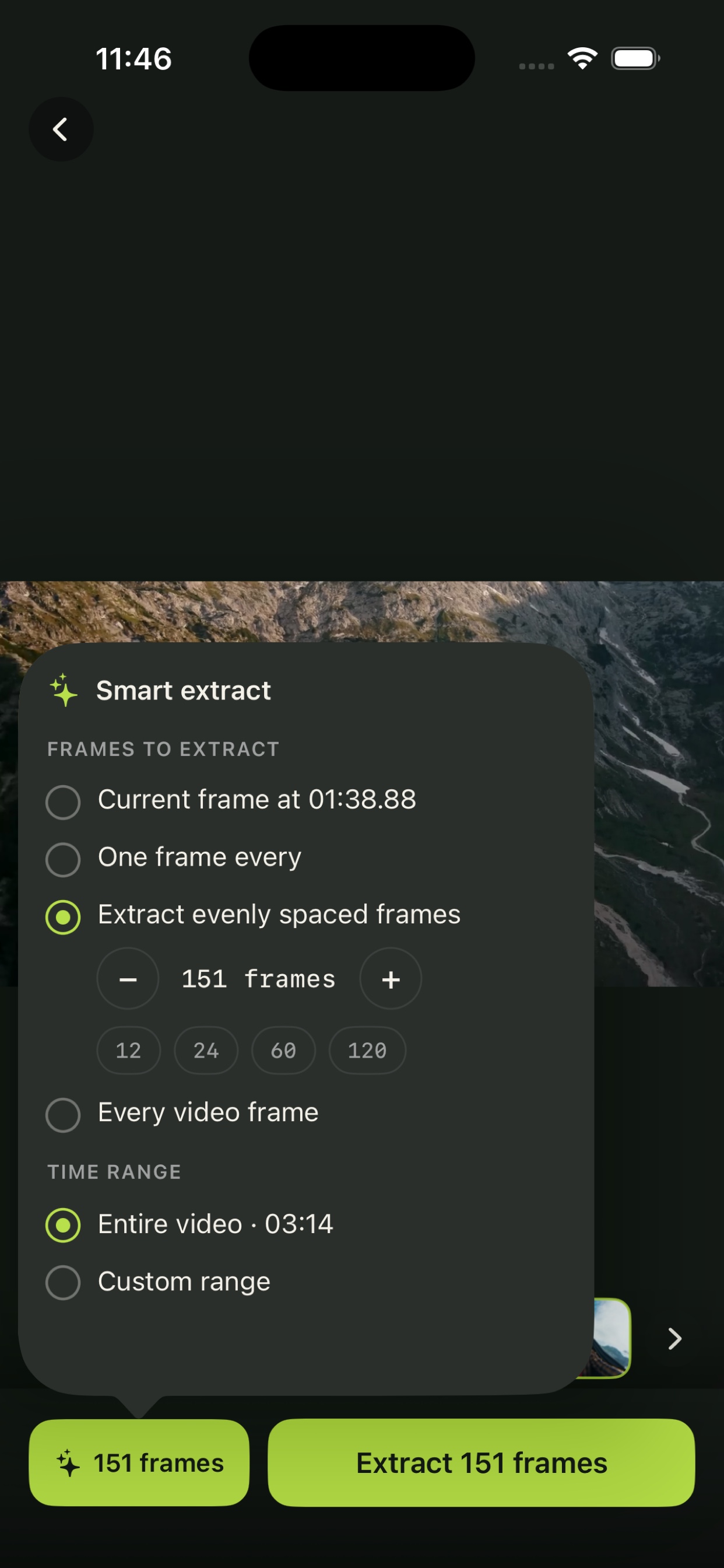
Use current frame, every N seconds, evenly spaced counts, or every video frame. Extraction opens Results as soon as frames are ready while Smart analysis finishes in the background.
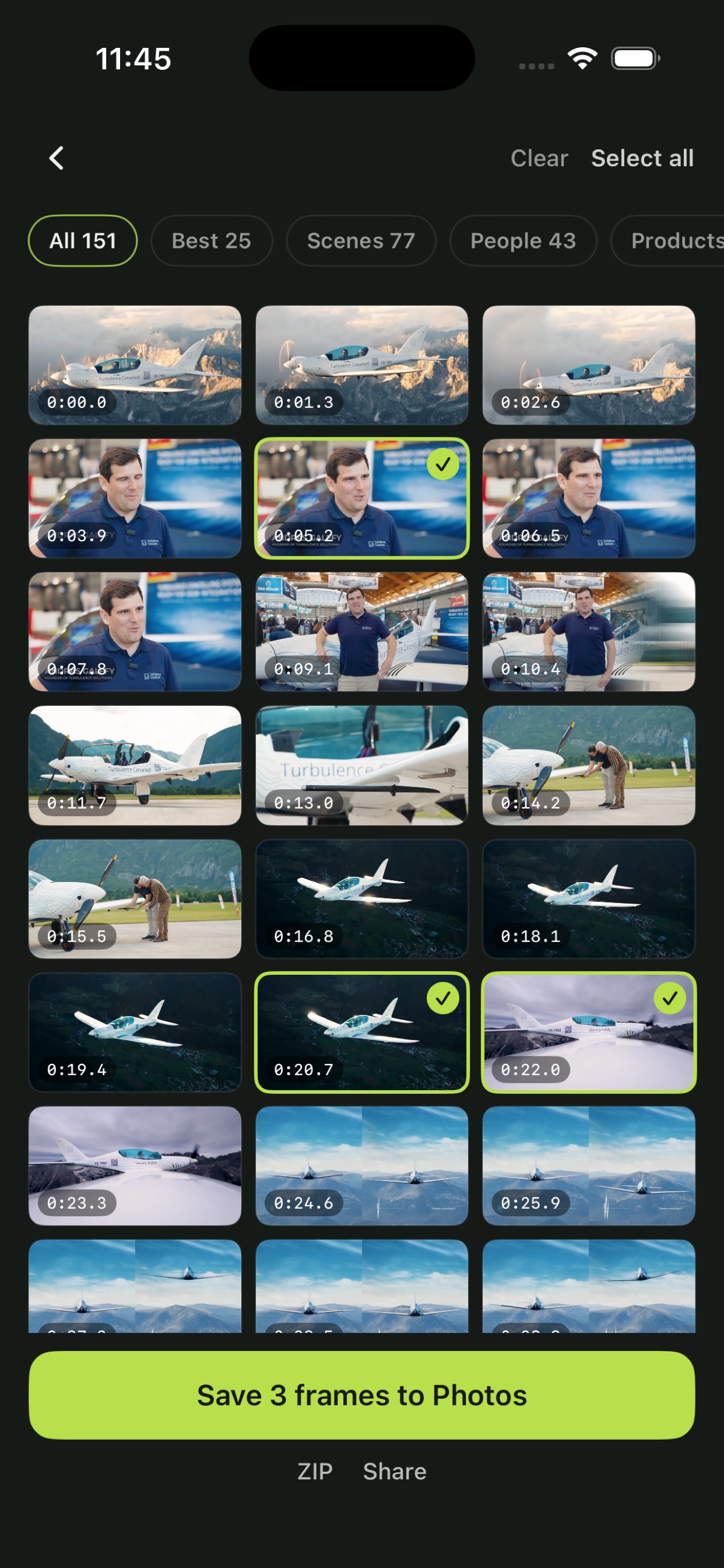
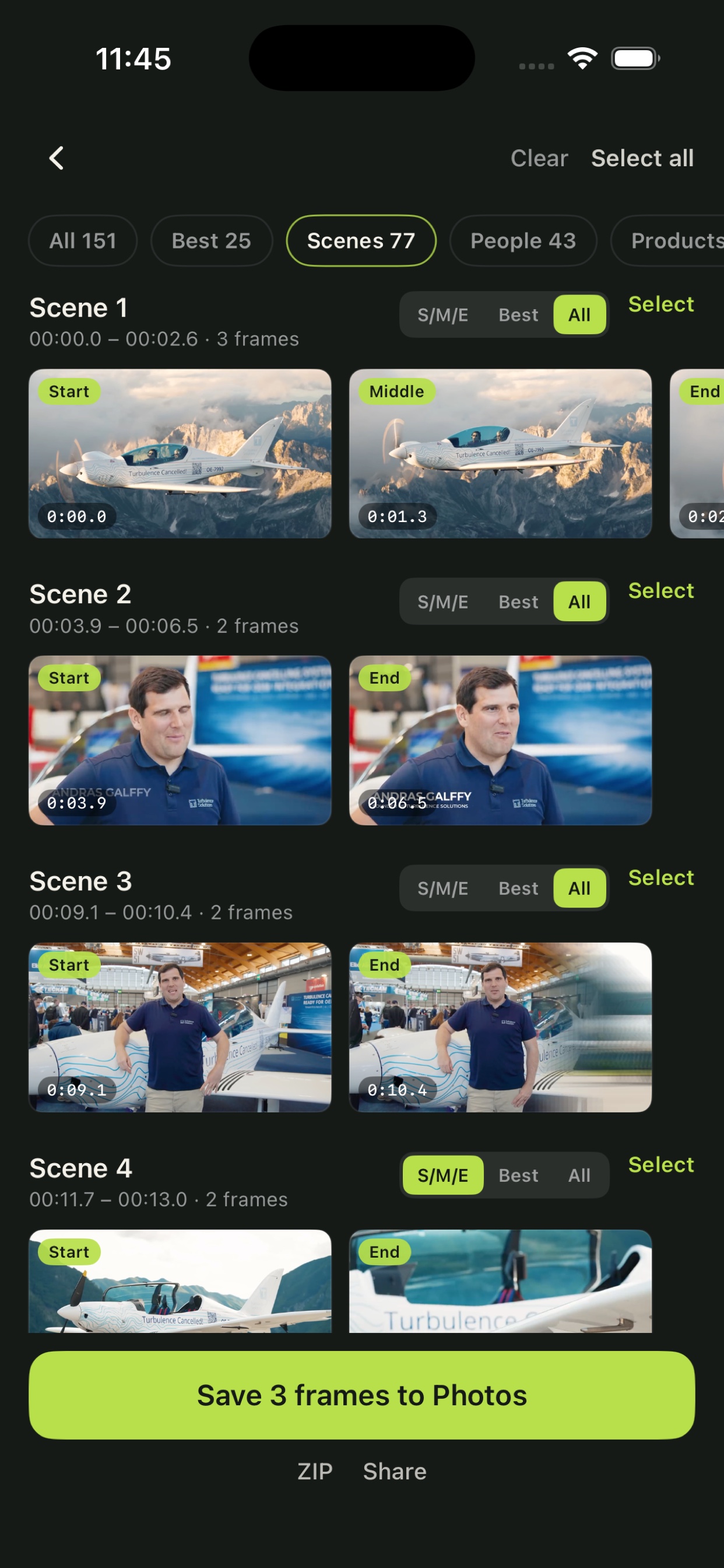
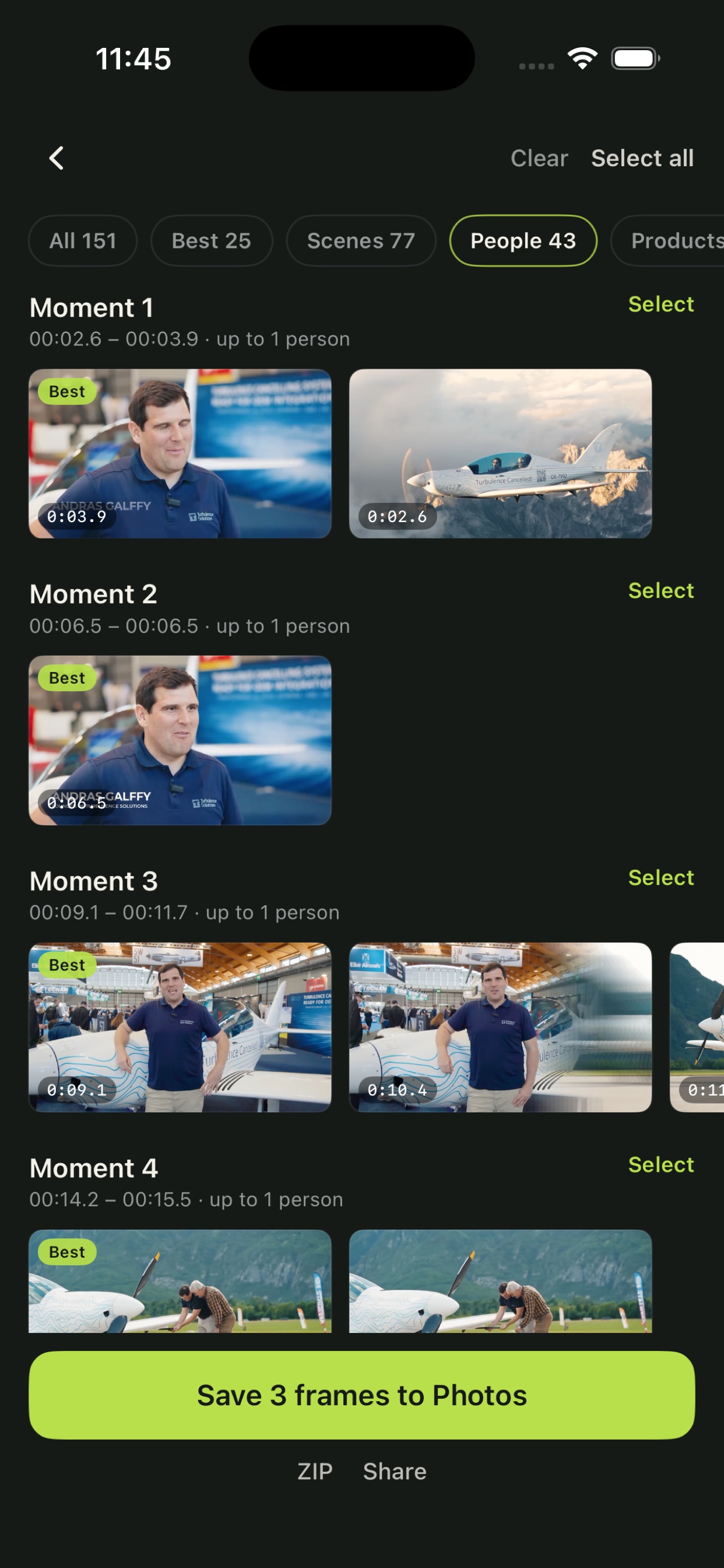
Browse All, Best, Scenes, People, Products, Animals, Vehicles, and My picks. Scene carousels toggle S/M/E, Best, or All; Products groups each detected type into its own carousel.
Select frames and export to Photos, ZIP, or Share. Your first exported video stays clean forever; later videos use a watermark until you unlock Lifetime.
Inside the app
From the Photos picker through Smart Collections and export — the same Select Lime language as desktop, sized for touch.
iOS capabilities
Start from the system Photos picker, pull a file from Files, or record a clip. No custom photo browser — you stay in the UI Apple already taught everyone.
AVFoundation pulls frames on your iPhone or iPad. Source video stays on the device for extraction; the app does not send video pixels to a conversion server.
Results open as soon as frames decode. Smart Collections finish analyzing in the background with live chip counts so you can start selecting immediately.
Best, Scenes, People, Products, Animals, and Vehicles use horizontal carousels. Scenes include per-scene S/M/E · Best · All — the same review language as desktop.
On-device YOLOX-Nano can label people, products, animals, and vehicles. Products and similar filters group by detected class so you scroll Laptop or Bottle carousels instead of one flat grid.
Long-press any thumbnail to open a fullscreen lightbox. Drag sideways to scrub neighboring frames, then Select to keep the one that matters.
Save selected frames straight to Photos, package a ZIP, or hand off through the iOS share sheet — whichever fits your next step.
Import and extract stay free. Unlock Lifetime once to remove watermarks on exports after your first clean video — billed and restored through Apple.
Smart Collections
Smart Collections turn extracted candidates into reviewable groups. Filters stay on one horizontal chip row with live counts when analysis finishes.
A highlight hub across scenes, quality, people, products, animals, and vehicles so you scan the strongest frames first.
Each scene is a carousel with S/M/E (Start / Middle / End), Best, or All. Select grabs that scene’s visible set in one tap.
Object filters group moments or COCO classes such as Laptop, Dog, or Airplane when detection finds them — no hardcoded product list.
All shows every extracted frame. My picks holds your selection while you jump between collections.
Pricing on iOS
You can import and extract from as many videos as you want. The freemium gate is at export: the first video you successfully save from stays clean forever. Later videos export with a watermark until Lifetime.
Local processing
Extraction, scene analysis, and object detection are designed to run on your iPhone or iPad. Your source video is not uploaded for frame extraction. Optional product analytics can send privacy-safe events; they do not include video pixels or export contents.
Who it is for
Pull stills from a shoot you just recorded, scan scene anchors, and save keepers to Photos before you get back to a desk.
Grab cover frames from vertical clips, review Best and Products carousels, and share selected stills without opening a laptop.
Work with clips that should stay on the phone. Detection and export run locally so the file never needs an upload converter.
Use iOS for quick picks in the field, then Desktop Bulk and presets when you are processing a whole shoot on Mac.
FAQ
Before you install
Lifetime unlocks clean exports after your first free clean video. The free browser extractor and Desktop Mac download stay available separately.
Explore
Smart Frame Studio for Mac Apple Silicon with Bulk and presets.
Free browser extraction and Pro Lifetime for Desktop Studio.
Extract stills in the browser with no install when a file is browser-decodable.
FFmpeg recipes, YouTube screenshot tips, and tool comparisons.